Chapter 6 · ~14 min read
Configuring Your Agent
Claude Code reads configuration files to know how to behave. The instruction file (CLAUDE.md) is where you start. Rules, memory, and skills give it context. Agents, commands, hooks, and MCP servers give it capabilities. You don't have to create any of these files by hand — just ask Claude to set them up for you.
Configuring Your Agent
TL;DR: Claude Code reads configuration files to know how to behave. The instruction file (CLAUDE.md) is where you start. Rules, memory, and skills give it context. Agents, commands, hooks, and MCP servers give it capabilities. You don't have to create any of these files by hand — just ask Claude to set them up for you.
Chapters 4 and 5 got Claude Code running and your project backed up with Git. This chapter is about making the agent work well — giving it the right context, the right tools, and the right guardrails before you hand it a real task.
Where everything lives: the .claude folder
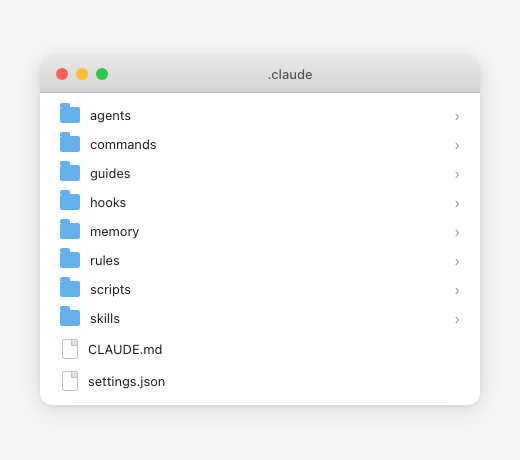
All of Claude Code's configuration lives in a folder called .claude. The dot at the beginning means it's a hidden folder — it won't show up in Finder or File Explorer by default, but VS Code shows it in your file explorer.
There are two levels:
| Level | Location | Who it affects | What goes here |
|---|---|---|---|
| Project | my-project/.claude/ | Just this project | Project-specific rules, agents, skills, settings |
| Global | ~/.claude/ (your home folder) | Every project on your machine | Personal preferences, global rules, your memory file |
The ~ symbol means your home folder — /Users/yourname on Mac, C:\Users\yourname on Windows. You don't need to create these folders yourself. Claude Code creates them when needed.
The key idea: Project-level configuration is shared with your team (it lives in the project). Global configuration is personal to you.
You don't have to create files by hand
This is important: you can ask Claude to set up any of this configuration for you. You don't need to know the exact folder structure or file format. Just tell the agent what you want:
- "Create a CLAUDE.md for this project"
- "Add a rule that all code should follow our naming conventions"
- "Set up a custom agent for reviewing code"
- "Create a skill that describes my writing voice"
Claude knows where these files go and how to format them. As you get more comfortable, you might want to edit them directly — but you never have to.
The configuration layers
There are eight layers, from most essential to most advanced. You only need the first one to start:
- The instruction file (CLAUDE.md) — Standing orders for every session
- Rules — Organized instructions by topic
- Memory — Notes the agent keeps across sessions
- Skills — Domain knowledge and expertise
- Custom agents — Specialized roles for specific tasks
- Commands — Workflow recipes you trigger by name
- Hooks — Automated actions at specific moments
- MCP servers — Connections to external tools
1. The instruction file (CLAUDE.md)
This is the most important configuration you'll make. CLAUDE.md is a text file that Claude Code reads automatically at the start of every session — before you say anything. It's your agent's standing orders.
What goes in it
Think of CLAUDE.md as a brief for a new team member who joins the project every morning with no memory of yesterday. What would you tell them?
- What this project is and who it's for
- What tools or technologies it uses
- How to run things (preview, publish, export)
- What files or folders to never touch
- Style preferences and conventions
- Known issues or quirks
The structure is the same whether you're building software or writing content — project description, key files, rules, workflow. Chapter 8 shows a complete real-world CLAUDE.md.
How to create it
The fastest way — just ask Claude:
Create a CLAUDE.md file for this project
Claude will scan your project and generate one based on what it finds — detected languages, file structure, build tools. Edit it from there.
You can also run the shortcut command /init in the Claude Code panel, which does the same thing.
Where it lives
| Location | Scope |
|---|---|
Your project root (/my-project/CLAUDE.md) | Read for this project only |
Inside the .claude folder (/my-project/.claude/CLAUDE.md) | Same — project only |
Your home folder (~/.claude/CLAUDE.md) | Read for every project on your machine |
Most people use a project-level CLAUDE.md. If you have rules that apply everywhere ("never commit .env files"), put those in the global one.
There's also a local variant — .claude/CLAUDE.local.md — for personal preferences you don't want to share with your team. This file is ignored by Git, so it stays on your machine.
2. Rules
As your CLAUDE.md grows, you might want to organize it. Instead of one giant file, you can split instructions into rules — separate files organized by topic.
my-project/.claude/rules/
├── code-style.md      — formatting, naming, file organization
├── testing.md         — what to test, how to run tests
├── security.md        — input validation, authentication rules
└── deployment.md      — staging vs production, deployment checklist
For a content project, these might be voice.md, editorial.md, formatting.md, and publishing.md instead. Same concept, different domain. Chapter 8 shows a real example.
Each rule is a plain markdown file. Claude reads all of them automatically, just like CLAUDE.md. The advantage is organization — when you want to update your testing rules, you edit one focused file instead of hunting through a giant instruction document.
Rules can also live globally (~/.claude/rules/) for instructions you want across all projects.
To create rules: Just ask Claude — "Create a rule for code style in this project" — and it will create the file in the right place.
3. Memory
Remember Chapter 2 — the memory problem? Memory is one of the solutions.
Claude Code has an auto memory system. As you work, it can save notes to a file called MEMORY.md that persists across sessions. Next time you start a new session, Claude reads this file and remembers what it learned.
What goes in memory:
- Patterns it discovered about your project ("the API always returns dates in ISO format")
- Workflow insights ("running tests before deploying catches most issues")
- Your preferences ("user prefers short paragraphs and avoids passive voice")
Memory lives at ~/.claude/projects/<your-project>/memory/MEMORY.md. You can also ask Claude to remember things explicitly:
Remember that I always want you to run tests before committing
And it will save that to its memory file. You can also tell it to forget things:
Stop remembering the thing about Tailwind — we switched to plain CSS
4. Skills
A skill is a knowledge file that teaches an agent about a specific domain. Think of it as expertise in a bottle — what good writing sounds like, what thorough research includes, what your brand guidelines require.
Skills are markdown files that live in .claude/skills/<skill-name>/SKILL.md. A voice skill might capture your writing style. A design tokens skill might define your brand colors and typography. A research playbook might list the categories of information to look for.
Skills don't run on their own — they provide context that agents and commands load when they need it. A voice skill gets loaded by a writer agent when drafting. A research playbook gets loaded by a researcher agent when gathering material. Chapter 8 shows real examples of both.
Built-in skills come with Claude Code. You can also install community skills or create your own. Creating your own becomes useful when you have domain expertise worth codifying — your writing voice, your research standards, your brand guidelines.
To create one: Ask Claude — "Create a skill that describes my writing voice" — and it will set it up.
The difference between rules, memory, and skills: Rules are instructions you write — always loaded, never changing unless you edit them. Memory is notes the agent keeps for itself — always loaded, updated as it learns. Skills are deep domain knowledge — loaded only when an agent or command needs them. Rules and memory are always in the context window. Skills are pulled in on demand.
5. Custom agents
A custom agent is a specialized version of Claude that you define for a specific type of task. Think of it as creating a team member with a specific role: one agent for code review, another for writing tests, another for planning.
Each agent is a markdown file with a name, description, and instructions. The file tells the agent what role to play, what to focus on, and what to produce. Chapter 8 shows real agent definitions.
Custom agents live in .claude/agents/ (project) or ~/.claude/agents/ (global). When Claude Code needs to handle a task that matches an agent's description, it can dispatch that agent — or you can invoke one directly.
To create one: Ask Claude — "Create a custom agent for reviewing code" — and it will set it up.
Why use custom agents?
The main agent can do everything. But custom agents are useful when:
- You want consistent behavior for a specific task (always review drafts the same way)
- You want to run tasks in parallel (one agent researches while another writes)
- You want a restricted agent that can only read files, not modify them
6. Commands
A command is a workflow recipe you trigger by typing a slash. Think of it as a checklist that the agent follows step by step — often dispatching agents and loading skills along the way.
Commands are markdown files that live in .claude/commands/<command-name>.md. Each one lists the steps to follow, which agents to dispatch, and which skills to load. You invoke a command by typing its name with a slash — like /deploy or /write-post Poland. The agent reads the steps and follows them. Chapter 8 shows a complete command that wires agents and skills together.
The difference between skills, commands, and agents: A skill is knowledge ("here's what good research looks like"). A command is a workflow ("do research, then write, then review"). An agent is a role ("you are the researcher — here's how you work"). Commands dispatch agents; agents load skills; everyone follows the rules.
To create one: Ask Claude — "Create a command for my deployment workflow" — and it will set it up.
7. Hooks
Hooks are automated actions that run at specific moments in the agent's workflow — like tripwires. You set them up once, and they fire every time that moment occurs.
| Hook event | When it fires | Example use |
|---|---|---|
PreToolUse | Before the agent runs a command | Block dangerous commands |
PostToolUse | After the agent edits a file | Auto-format the code |
Stop | When the agent finishes a task | Run tests automatically |
SessionStart | When a new session begins | Check prerequisites |
Say you want the agent to automatically format code after every edit. You'd create a hook that fires after each file change (PostToolUse) and runs your code formatter.
You can set up hooks by typing /hooks inside Claude Code — it opens an interactive menu.
Who needs hooks? Not beginners. Hooks are a power feature for when you're running agents more autonomously and want automated guardrails. Come back to this when you need it.
8. MCP servers
MCP stands for Model Context Protocol. An MCP server is a bridge that connects Claude Code to an external tool or service — like GitHub, Slack, a database, or a project management tool.
Without MCP, the agent can only work with files on your computer. With MCP servers, it can:
- Read and create GitHub issues and pull requests
- Query your database directly
- Pull designs from Figma
- Access your project management tools (like Linear or Jira)
To add one, you can ask Claude:
Connect to GitHub using MCP
Or use the command directly:
claude mcp add --transport http github https://mcp.github.com
Who needs MCP servers? Anyone working on a project that connects to external services. If your project uses GitHub for code or a database for data, MCP servers let the agent interact with those tools directly.
The configuration stack at a glance
| Layer | What it does | How it's invoked | When to set it up | How to create it |
|---|---|---|---|---|
| CLAUDE.md | Standing instructions: what the project is, how it works, what to avoid | Read automatically at every session start | Day one — before your first real task | Ask Claude or run /init |
| Rules | Focused instructions by topic: coding style, testing, security, voice | Read automatically alongside CLAUDE.md | When your CLAUDE.md gets too long | Ask Claude to create a rule |
| Memory | Notes about your preferences and patterns that persist across sessions | Read automatically; updated as you work | Automatic — Claude learns as you work | Ask Claude to remember something |
| Skills | Domain knowledge: your voice, research standards, brand guidelines | Loaded by agents and commands that need the expertise | When you have domain knowledge worth codifying | Ask Claude to create a skill |
| Custom agents | Specialized roles: a researcher, a writer, a reviewer — each with defined expertise | Dispatched by commands or other agents, or invoked directly | When you want consistent behavior for a task type | Ask Claude to create an agent |
| Commands | Workflow recipes: step-by-step processes that dispatch agents and load skills | You type /command-name with optional arguments | When you repeat the same multi-step workflow | Ask Claude to create a command |
| Hooks | Automated actions that fire at specific moments: format code, run tests, block commands | Fire automatically when their trigger event occurs | When you want automated guardrails | Type /hooks in Claude Code |
| MCP servers | Bridges to external services: GitHub, databases, Slack, project management tools | Connected at session start after one-time setup | When your project uses external services | Ask Claude to connect a service |
Global vs. project: what goes where
Put it in project (.claude/) when... | Put it in global (~/.claude/) when... |
|---|---|
| It's specific to this project | It applies to all your projects |
| Your team should see it | It's a personal preference |
| It references project files or structure | It's about how you work, not the project |
Examples:
- "All API responses must include error codes" → project rule (specific to this app)
- "Always explain your changes before making them" → global rule (your preference everywhere)
- Brand guidelines for your website's design → project skill
- A
/deploycommand for the deployment workflow → project command - A code review agent you use across all projects → global agent
Practical tips
Don't skip the CLAUDE.md. Starting without a CLAUDE.md is like hiring someone and not telling them what the project is. The agent will work — but it'll make assumptions about your tech stack, style, and preferences that might not match yours. Five minutes writing a CLAUDE.md saves hours of corrections.
More reading
- Best Practices for Claude Code (Anthropic) — The official guide from Anthropic on configuring CLAUDE.md, managing context, using multi-session workflows, and getting the most out of Claude Code.
- The Complete Guide to Building Skills for Claude (Anthropic) — Anthropic's official guide to creating reusable skills, covering structure, sizing, and composition patterns.
- Using CLAUDE.md Files: Customizing Claude Code for Your Codebase (Anthropic) — Anthropic's official walkthrough of CLAUDE.md files, covering structure, the
/initcommand, and best practices for giving your agent persistent project context. - Ultimate Guide to Claude MCP Servers and Setup (Generect) — A comprehensive walkthrough of the Model Context Protocol, from what MCP servers are to setting them up for GitHub, databases, and other tools. (Advanced — skip this if you're just getting started.)