Chapter 4 · ~12 min read
Setting Up
You need three things: VS Code (free), the Claude Code extension (free), and a Claude subscription ($20/mo). This chapter walks through every step — downloading, installing, and running your first command.
Setting Up
TL;DR: You need three things: VS Code (free), the Claude Code extension (free), and a Claude subscription ($20/mo). This chapter walks through every step — downloading, installing, and running your first command.
Setting up takes about ten minutes. No terminal commands, no technical knowledge required. Just downloading, clicking, and signing in.
Step 1: Download VS Code
VS Code is the free editor we recommended in Chapter 3. It's where you'll do all your work.
- Go to code.visualstudio.com
- Click the big download button — it detects your operating system automatically
- Open the downloaded file and follow the installer
Once it's installed, open VS Code. You'll see an editor with a sidebar on the left and a welcome tab. That's your workspace.
Step 2: Install the Claude Code extension
Extensions are add-ons that give VS Code new abilities. The Claude Code extension is what connects you to the AI agent.
- In VS Code, click the Extensions icon in the left sidebar (it looks like four small squares)
- In the search box at the top, type Claude Code
- Find the one by Anthropic (look for the verified checkmark)
- Click Install
That's it. Once installed, you'll see a small Claude icon in the sidebar. Click it to open the Claude Code panel.
Step 3: Get a Claude subscription
Claude Code needs a Claude account to work. If you don't have one yet:
- Go to claude.ai and create an account
- Subscribe to Claude Pro ($20/mo) or Claude Max ($100–200/mo) — Claude Code is included with both
The difference: Pro gives you a generous amount of usage for everyday work. Max gives you significantly more — useful if you're working on bigger projects or using the agent heavily throughout the day.
Step 4: Sign in
- Click the Claude icon in the VS Code sidebar to open the Claude Code panel
- It will prompt you to sign in — click the link and log in with your Claude account
- Once connected, you'll see a text input where you can type instructions
Getting to know VS Code
When you first open VS Code, it can look overwhelming — buttons everywhere, panels, icons. Here's what you're actually looking at. There are only four areas that matter:
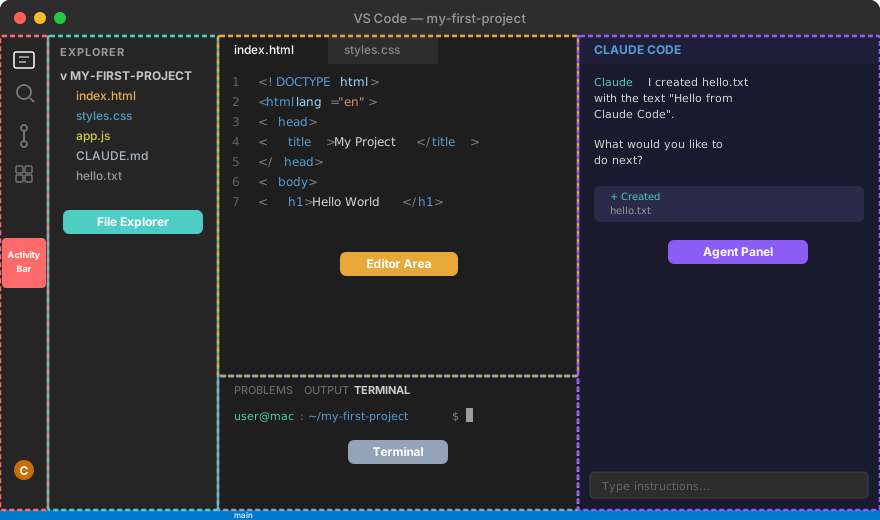
Activity Bar (far left, the thin strip of icons). This is your navigation. Each icon opens a different panel in the sidebar. The main ones:
- File explorer (top icon) — shows your project's files and folders
- Search — find text across your entire project
- Extensions (four squares icon) — where you installed Claude Code
- Claude Code icon (at the bottom) — opens the agent panel
File Explorer (the sidebar next to the activity bar). This shows every file and folder in your project. Think of it like Finder on Mac or File Explorer on Windows — but built into the editor. Click any file to open it.
Editor Area (the center). This is where files open when you click them. You can have multiple files open at once — each one gets a tab at the top, just like browser tabs. This is where you read and edit code (or any text file).
Agent Panel (the right side, next to the editor). This is Claude Code. You type instructions here, and the agent responds. It can read your files, create new ones, and make changes — all from this panel. You see the agent's work on the right while your files are open on the left.
Terminal (the bottom panel, below the editor). A text command line built into VS Code. You won't need it much at first — Claude Code runs commands for you — but it's there when you need it. More on this in the next section.
The basic workflow: Click a file in the sidebar to see it in the editor. Type instructions in the agent panel on the right. The agent edits the file, and you see the changes appear in the editor on the left. That's the loop.
Step 5: Open a practice project
Let's give you something real to work with. We've created a small starter project — three files: an HTML page, a CSS stylesheet, and a README.
- Go to github.com/royfrenk/my-first-project
- Click the green Code button, then Download ZIP
- Unzip the file somewhere on your computer (Desktop is fine)
- In VS Code, go to File → Open Folder and select the
my-first-projectfolder
You should see three files in the sidebar: index.html, style.css, and README.md. Click index.html to open it in the editor. You'll see HTML — the code that makes web pages. You don't need to understand it.
Now, in the Claude Code panel, type:
Change the heading to say "Hello from Claude Code"
The agent will edit index.html for you. You'll see the change appear in the editor. To see it in a browser, right-click index.html in the sidebar and select Open with Live Server (if you have the Live Server extension) or just double-click the file in Finder/File Explorer to open it.
Try a few more things:
Add a button that says "Click me" and make it change the background color when clicked
Make the whole page dark mode — dark background, light text
This is your sandbox. Experiment freely — you can always download a fresh copy.
Working with the terminal
If you grew up with computers in the 80s or 90s, you might remember DOS — that black screen with a blinking cursor where you typed commands like dir to see your files. The terminal is the same idea, just modern. It's a text-based way to talk to your computer: you type a command, press Enter, and the computer responds with text.
On a Mac, it's called Terminal. On Windows, it's Command Prompt or PowerShell. But you don't need to open any of those — VS Code has one built in. To open it: go to Terminal → New Terminal in the menu bar, or press Ctrl+` (that's the backtick key, usually above Tab). A panel appears at the bottom of VS Code with a blinking cursor, waiting for input.
Try typing this and pressing Enter:
ls
You'll see a list of files and folders in your current project. That's it. ls means "list" — it shows you what's in the current directory. On Windows, the equivalent is dir (just like DOS). Nothing scary happened. You just asked the computer a question and it answered.
You don't need to memorize commands or understand what's happening under the hood. Claude Code runs terminal commands for you constantly — installing packages, starting servers, checking files. When the agent shows you a command it wants to run, you'll see it in the Claude Code panel and can approve it. The agent does the typing.
But there's one command you absolutely need to know: Ctrl+C. This is the universal "stop what's running" shortcut. If you start a server and want to stop it, Ctrl+C. If a command is taking forever, Ctrl+C. If something looks stuck, Ctrl+C. It's the emergency brake, and you'll use it often. On Mac, it's still Ctrl+C (not Cmd+C — that's copy).
One thing the terminal can't do well: edit text. The terminal is great for running commands, but it's a terrible text editor. If a command ever drops you into a text editor inside the terminal (you'll know because the cursor starts behaving strangely and nothing you type seems right), press Esc, then type :q! and press Enter. That exits the most common terminal text editor (called Vim). It's a rite of passage — even experienced developers get trapped in Vim. Don't worry about it. You have VS Code for editing files.
The Claude Code status bar
At the bottom of the Claude Code panel, there's a thin status bar that shows you what's happening at a glance. Here's what each piece means:
| Element | What it shows |
|---|---|
| Mode toggle | Which mode the agent is in — Normal, Plan, or Auto-accept |
| Context file | The file or project the agent is currently focused on |
| Context usage | How much of the context window is used (e.g., "45% used" or "100% used") |
| Action icons | Quick actions like attaching files or submitting messages |
The context usage indicator is especially useful. As you work, the agent accumulates context — every file it reads, every message you exchange. When it hits 100%, the agent compresses older messages to make room. This is normal. If you notice the agent "forgetting" things you discussed earlier, context compression is usually why. You can start a fresh conversation to reset it.
Modes
Claude Code has three modes that control how the agent works:
Normal mode (default). The agent proposes changes and asks for your approval before making them. Every file edit, every terminal command — you see it first and click "Accept" or "Reject." This is the safest way to work and where you should start.
Plan mode. The agent researches and plans but doesn't make any changes. It reads files, explores the codebase, and writes a plan for what it would do — then shows you the plan for approval. Useful when you want to understand what the agent is thinking before it touches anything.
Auto-accept mode. The agent makes changes without asking. It edits files, runs commands, and moves forward on its own. This is faster but riskier — you're trusting the agent to make good decisions. Use this once you're comfortable with how the agent works and you've set up proper guardrails (Chapter 6).
You can switch modes by clicking the mode toggle in the status bar, or by typing /auto-accept or /plan in the chat.
Permissions and bypass
By default, Claude Code asks permission before doing anything that could change your files or run commands. This is smart when you're learning — you see exactly what the agent wants to do before it does it.
But as you get more comfortable, the constant "Allow this?" prompts can slow you down. That's where bypass permissions comes in. It tells the agent to skip permission checks and just do the work.
How to enable bypass permissions:
- Open VS Code Settings (Cmd+, on Mac, Ctrl+, on Windows)
- Search for Claude Code
- Find the Auto Approve setting
- Check the boxes for what you want to auto-approve — file edits, terminal commands, or both
Alternatively, you can switch to auto-accept mode in the status bar, which bypasses all permission prompts for the current session.
When to use bypass permissions:
- You're working on a personal project and trust the agent
- You've already reviewed the agent's plan and want it to execute without interruption
- You're doing repetitive work where approving each step adds no value
When to keep permissions on:
- You're new to Claude Code (keep them on for your first few sessions)
- You're working on production code or shared projects
- The agent is doing something unfamiliar and you want to understand each step
Start with permissions on. Switch to auto-accept once the "Allow?" prompts feel like they're slowing you down instead of protecting you.
Recommended extensions
While you're in the Extensions panel, there are a few other extensions worth installing. None of these are required, but they make the experience better:
| Extension | What it does | Why you'd want it |
|---|---|---|
| Markdown Preview Enhanced | Shows a live preview of markdown files side by side with the raw text | Useful for reading and editing CLAUDE.md and other documentation files. You'll be writing these in Chapter 6. |
| GitLens | Shows who changed what and when in your code | Helpful once you start using Git (Chapter 5) — makes version history visual instead of text-based. |
| Error Lens | Shows error messages directly in your code, right next to the line that caused them | Catches problems as you type instead of making you hunt through a separate panel. |
| GitHub Copilot | AI code suggestions that appear as you type, like autocomplete on steroids | A second AI perspective alongside Claude Code. Free tier available. |
| Gemini Code Assist | Google's AI coding assistant — similar to Copilot, different model | Another option for inline suggestions. Free tier available. Good to have a second opinion. |
To install any of these: search for the name in the Extensions panel, find the right one, click Install. Same process as Claude Code.
If something goes wrong
| Problem | Fix |
|---|---|
| Can't find the Claude Code extension | Make sure VS Code is up to date: go to Help → Check for Updates. Claude Code requires a recent version. |
| Can't sign in | Make sure you have a Claude account at claude.ai. Claude Code requires at least a Pro subscription ($20/mo). |
| Agent responds but can't create files | Check that you've opened a folder in VS Code (File → Open Folder), not just a single file. The agent needs a project folder to work in. |
| Extension installed but no icon in sidebar | Try restarting VS Code (close it completely and reopen). Sometimes extensions need a restart to appear. |
More reading
- Claude Code Quickstart (Anthropic) — The official step-by-step guide from Anthropic for getting Claude Code installed and running.
- Claude Code Tutorial for Beginners (codewithmukesh) — A hands-on walkthrough covering installation, first commands, and practical tips for getting productive quickly.
- Claude Code for the Rest of Us: Setup Guide and Use Cases (WhyTryAI) — Written for non-developers, this guide covers the basics of what Claude Code can do and how to start using it without a technical background.