Chapter 5 · ~9 min read
Git and GitHub
Git is an infinite undo button for your project. GitHub is where your code lives — the canonical location that gives you backup, version history, and portability. Together, they let you save your work, go back to any previous version, and move between machines or tools without losing anything. Your agent handles most of the mechanics — but you need to understand what's happening.
Git and GitHub
TL;DR: Git is an infinite undo button for your project. GitHub is where your code lives — the canonical location that gives you backup, version history, and portability. Together, they let you save your work, go back to any previous version, and move between machines or tools without losing anything. Your agent handles most of the mechanics — but you need to understand what's happening.
Why version control matters
Imagine writing a 20-page document with no undo button. Every change is permanent. Delete a paragraph by accident? Gone. Rewrite a section and realize the original was better? Too late.
That's what building anything with an agent is like without version control — a system that tracks every change you make, lets you undo any of them, and keeps a complete history of your project.
GitHub is the easiest way to think about this. It's like Google Drive for code — a free website where your code lives as the canonical copy. You upload your project files, keep track of every version, and share or collaborate with others. Most IDEs (including VS Code) connect to it natively, so uploading and downloading projects is built right in.
Behind GitHub is Git — the version control engine that actually tracks your changes. Git runs on your computer and records every save point. GitHub stores those save points online where they're safe, shareable, and accessible from any machine. You'll mostly interact with GitHub through your agent or your IDE — Git does the work under the hood.
Not just for code
You might think Git and GitHub are only for software projects. They're not. Any project you work on with an agent benefits from a repository — even if there's no code involved.
A blog, a research archive, a collection of marketing materials, a set of instruction files for your agent — all of these are folders full of files that change over time. A repository gives you:
- Backup. Your code lives on GitHub, not just on your laptop. If your machine dies, everything is safe.
- History. You can see what changed, when, and why. When an agent rewrites a section and you prefer the old version — go back.
- Portability. Clone the repo onto any machine and keep working. Move between a desktop and a laptop. Share the project with a collaborator.
When you start a new project — any project, not just a software one — the first step is creating a folder and connecting it to Git. It takes thirty seconds and gives you a safety net from day one.
The core concepts
There are only four concepts you need to understand. Everything else builds on these.
1. Repository (repo)
A repository is a project tracked by Git. When you tell Git to start tracking a folder, that folder becomes a repository. It looks exactly the same — same files, same folders — but now Git is watching every change.
Your agent can create a repository for you:
Initialize a Git repository for this project
2. Commits
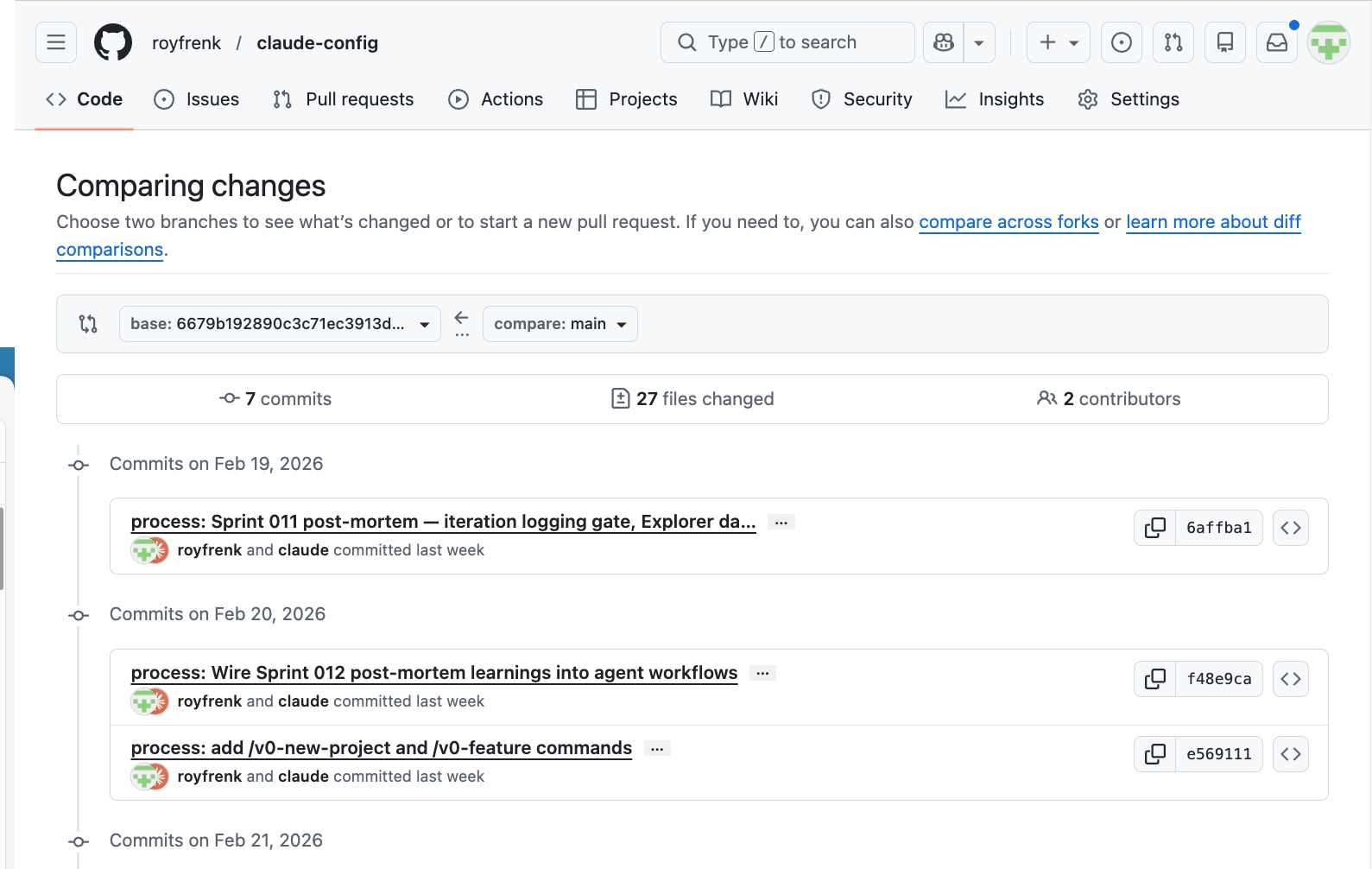
A commit is a saved snapshot of your project at a specific moment. Think of it as a save point in a video game. You can always go back to any commit.
Each commit has:
- A message describing what changed ("Added contact form to homepage")
- A timestamp (when it was saved)
- A unique ID (a long string of letters and numbers)
You don't make commits constantly — you make them at meaningful moments. Finished the homepage? Commit. Fixed a bug? Commit. About to try something risky? Commit first, so you can go back if it breaks.
Your agent creates commits too. When it finishes a task, you can ask:
Commit these changes with a message describing what you did
3. Branches
A branch is a parallel copy of your project where you can make changes without affecting the original. The main version of your project is usually called main.
Say you want to add a new feature but you're not sure it'll work. You create a branch, make your changes there, and if it works — you merge it back into main. If it doesn't — you delete the branch and nothing was harmed.
Create a new branch called "add-contact-form"
Branches are how teams work together without stepping on each other's changes. One person works on the login page in their branch. Another works on the homepage in theirs. When both are done, they merge their branches into main.
4. Push and pull
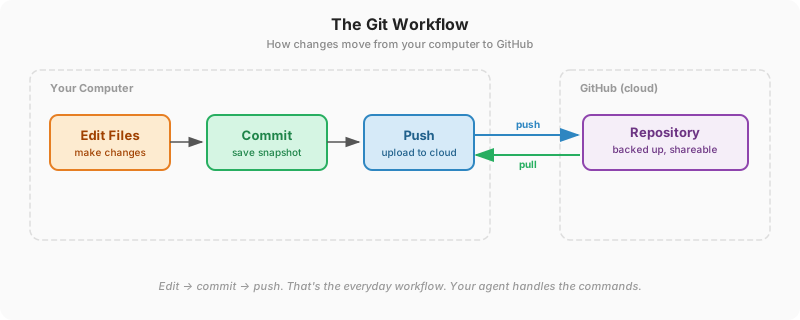
Push sends your local commits to GitHub (your computer → the cloud). Pull downloads the latest changes from GitHub (the cloud → your computer).
When you commit changes, they're saved locally on your machine. Pushing uploads them to GitHub where they're backed up and visible to others.
Push my changes to GitHub
Setting up Git and GitHub
Git
Git comes pre-installed on Mac. On Windows, your agent can help you install it, or download it from git-scm.com.
To check if you have it, ask Claude:
Check if Git is installed
GitHub
1. Create a free account. Go to github.com and sign up. The free tier is more than enough — unlimited public and private repositories, no credit card required. Pick a username you're comfortable with; it becomes part of your project URLs.
2. Install the GitHub CLI. This lets Claude Code interact with GitHub directly. Ask Claude:
Install the GitHub CLI and authenticate me
Claude will install the gh tool and open a browser window for you to log in. Once authenticated, Claude can create repos, push code, and open pull requests — all through the terminal.
3. Create a repository for your project. Once authenticated, ask Claude:
Create a GitHub repository for this project and push the code
Claude creates the repo on GitHub, connects your local project to it, and pushes your files. From here on, every commit you push is backed up online.
Connecting GitHub to Claude Code
If you already have a GitHub account and the CLI installed, connecting Claude Code is one command:
gh auth login
Claude can run this for you. It opens a browser window, you confirm, and you're connected. After that, Claude can push code, create pull requests, and interact with your repos without any extra setup.
The everyday workflow
Once set up, the daily workflow is simple:
- Start working — make changes to your project (or ask Claude to)
- Commit — save a snapshot when you reach a good stopping point
- Push — upload to GitHub so it's backed up
That's it. Your agent handles the Git commands. You just tell it when to save and what to call the save point.
What your agent does with Git
Claude Code uses Git automatically for several things:
- Tracking what changed — before making edits, it can show you what files were modified
- Creating commits — you tell it to commit, it writes a descriptive message and saves
- Working with branches — it can create, switch, and merge branches
- Pushing to GitHub — sends your changes to the cloud
- Reverting changes — if something goes wrong, it can undo recent changes
You don't need to memorize Git commands. The agent handles the mechanics. But understanding what's happening — that you're saving snapshots, that branches are parallel copies, that pushing backs up your work — makes you a better collaborator with the agent.
Pull requests: proposing changes
A pull request (PR) is how you propose changes on GitHub. Instead of pushing directly to main, you push to a branch and then open a pull request that says "here's what I changed, please review it."
This is especially useful when:
- Working with a team (someone reviews your changes before they go live)
- Working with an agent (you review the agent's changes before merging them)
Create a pull request for the contact form feature
Claude will push your branch to GitHub and open a PR with a description of what changed.
Common situations
| Situation | What to do |
|---|---|
| "I want to save my progress" | Ask Claude to commit your changes |
| "I want to try something risky" | Ask Claude to create a branch first |
| "Something broke and I want to go back" | Ask Claude to revert to the last commit |
| "I want to back up my work" | Ask Claude to push to GitHub |
| "I want someone to review my changes" | Ask Claude to create a pull request |
| "I accidentally deleted a file" | Ask Claude to restore it from Git history |
What not to worry about
Git has hundreds of commands and options. You don't need most of them. Here's what you can safely ignore for now:
- Rebasing — an advanced way to organize commit history. Merging works fine.
- Cherry-picking — copying specific commits between branches. You won't need this.
- Stashing — temporarily hiding changes. Just commit instead.
- Submodules — projects inside projects. Avoid unless absolutely necessary.
If you understand commits, branches, push, and pull — you know enough to work effectively with your agent and keep your project safe.
Practical tips
Commit after every completed task. Every time you reach a working state — commit. Think of commits as save points in a game. If the agent breaks something in the next task, you can go back. A good rhythm: one commit per completed task. Finished the contact form? Commit. Fixed the header? Commit. About to redesign the homepage? Commit first.
More reading
- What Is Git? Our Beginner's Guide to Version Control (GitHub Blog) — GitHub's own introduction to Git, written for people who have never used version control before.
- A Simple Guide to GitHub for Non-Developers (Unito) — Explains GitHub in terms of project management — repositories, issues, pull requests — without assuming you write code.
- Git and GitHub Tutorial: Version Control for Beginners (freeCodeCamp) — A step-by-step walkthrough of the core Git workflow, from your first commit to pushing to GitHub.